
Useful information for donor branches, donor organisations and food banks donating food.
Overview
Foodiverse can record different types of donated goods while keeping your Surplus reporting accurate. Each food item in a donation has a Donation Type.
The options you see depend on what has been set up for your organisation. If this functionality has been enabled for your organisation, you may see additional Donation Type options when posting a donation.
If your organisation does not have additional Donation Types
-
Nothing changes. You post donations exactly as you do today.
-
Every food item is recorded as Surplus.
-
You do not need to do anything.
If your organisation has additional Donation Types
You may see one or more extra options when you post a donation. You will only see the options available to your organisation, so not every organisation will see Purchased or Food Appeal.
The Donation Types
|
Type |
Use it for |
|---|---|
|
Surplus |
Food that has become surplus to your operations. This is selected automatically, so you only change it when the food is not Surplus. |
|
Purchased |
Food that was bought or funded on purpose to be redistributed, rather than food that became surplus. |
|
Food Appeal |
Food donated through an appeal or customer donation initiative, rather than operational surplus. |
|
Non-food |
Items that are not food. Non-food is not a Donation Type you choose. You select the Non-food category instead (see below). |
How to change the Type of a food item
-
Start your donation as normal (see Create an unplanned donation).
-
In Food Details, add your food Category as usual. It is set to Surplus automatically.
-
If the food is not Surplus, open the options for that food item and choose the Type that applies.
-
Continue with your donation. Before you submit, the Review screen shows the Type of each item.
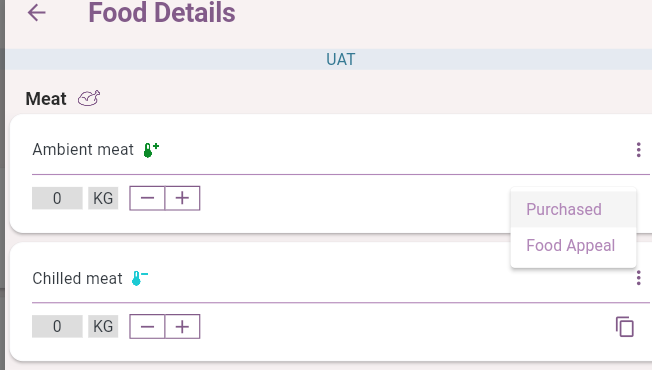
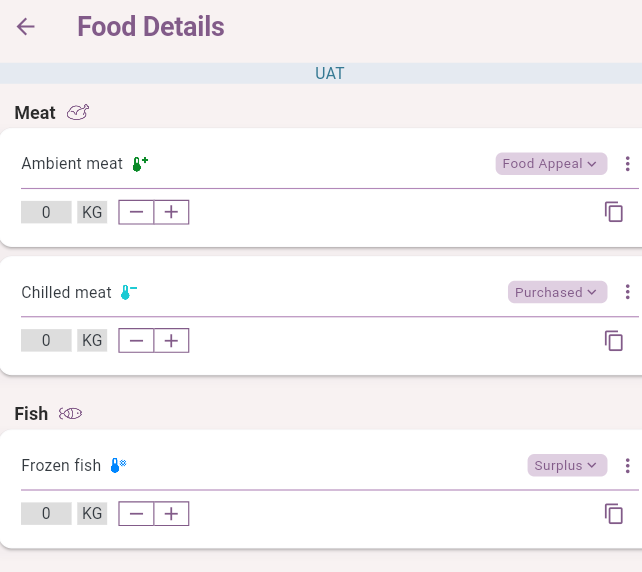
Only change the Type when the food is not Surplus. If you do not change it, the item stays as Surplus.
You can post food with different Types in the same donation. You can also include Non-food items alongside them.
Using the same Category for different Types
Sometimes part of a Category is Surplus and part is Purchased or from a Food Appeal. For example, some of your ambient groceries may be Surplus and the rest Purchased.
-
Change the Type of the first item as described above.
-
Use the Copy option on that item to add the same Category again.
-
Choose the Type for the copy. The Types already used for that Category are not available to choose again.
The same Category cannot be added twice with the same Type. Each copy is kept separate and is not merged with the others, including in your Donation History.
The Copy option only appears if extra Donation Types are available to your organisation.
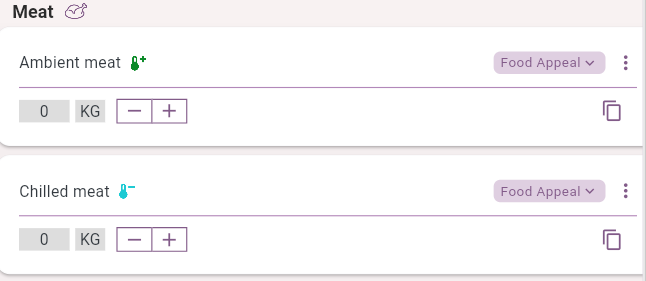
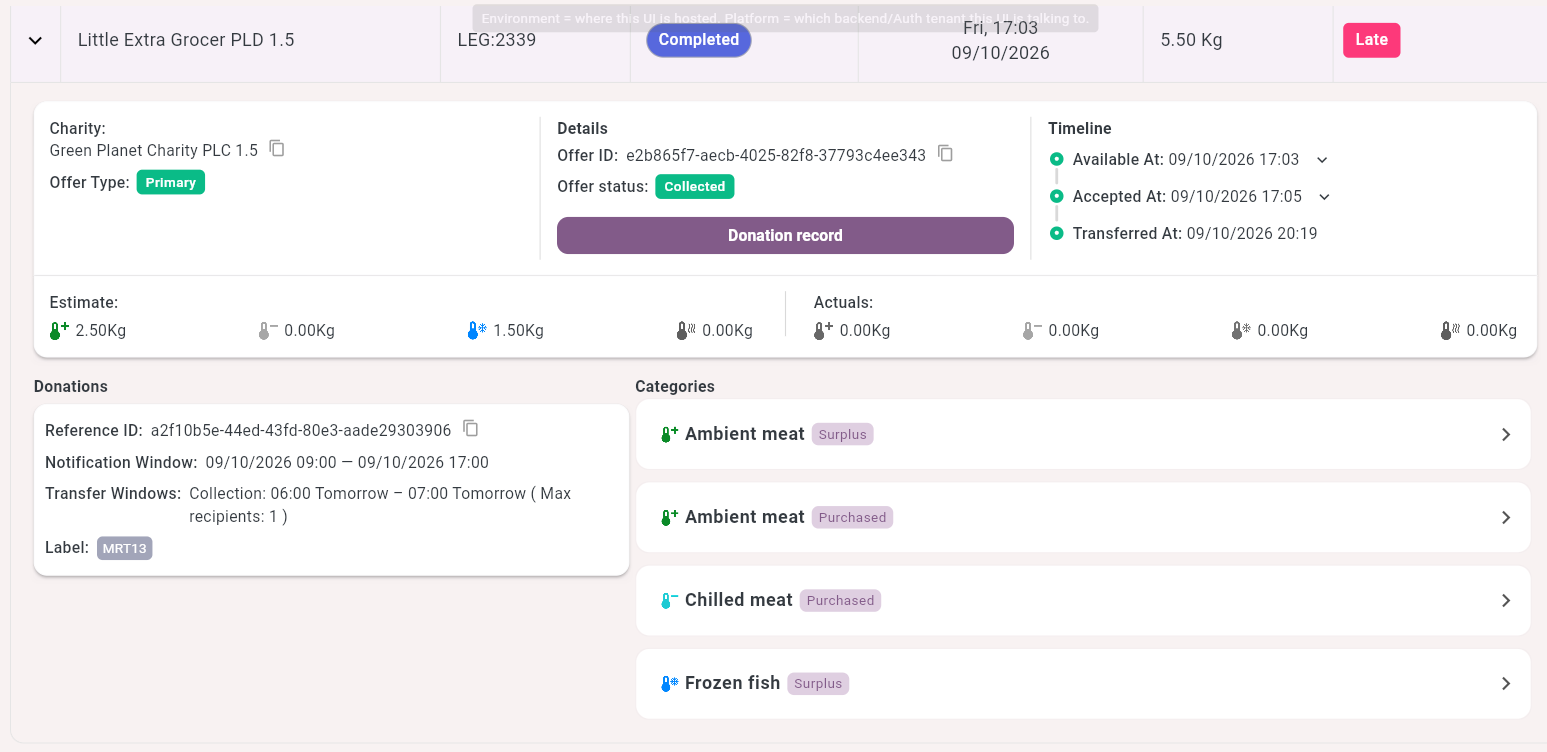
Product Level Detail
If you add Product Level Detail, the products automatically take the Type of the food item they sit under. You do not need to choose a Type for each product, and changing the Type does not change the product itself. The same product can appear under items with different Types.
Non-food
To donate Non-food items, add the Non-food category in Food Details. You do not need to choose a Donation Type. You can include Non-food in the same donation as Surplus, Purchased and Food Appeal items.
How this appears in reports
Only Surplus food counts towards your existing Impact figures. Purchased, Food Appeal and Non-food do not add to the totals on your Impact page, and do not increase the Surplus figures in your core Impact reports. If a donation contains a mix of Types, only the Surplus items are counted there.
|
Activity |
Where it is reported |
|---|---|
|
Surplus food |
Your existing core Impact reports |
|
Purchased food |
Donated Food Impact Report |
|
Food Appeal |
Donated Food Impact Report |
|
Non-food |
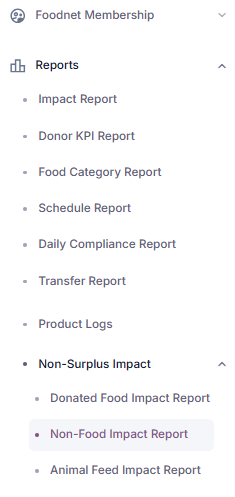
Non-food impact report |
-
Purchased and Food Appeal reports can show food weight and Meal Equivalents.
-
Purchased and Food Appeal do not contribute avoided CO₂.
-
Non-food does not receive Meal Equivalents or avoided CO₂.
-
You will only see reports for the functionality available to your organisation.
Related articles
Still haven’t found your answer? Try: