
Useful information for charity and donor users who need to complete onboarding tasks for a Food Network in Foodiverse.
Who this is for: Branch users and branch admins with a pending Food Network membership
What you can do: open onboarding tasks, complete the required steps, and track progress while your membership application is being reviewed
Where to find it: your dashboard onboarding card or the Complete Account Setup area where shown
The new onboarding flow helps organisations understand what they need to do after applying to join a Food Network. Instead of waiting for email instructions or contacting support, you can open the onboarding workflow in Foodiverse, review the tasks set by the Food Network, and mark each one as complete as you go.
Before you start
-
You must be logged in to Foodiverse as a user linked to the branch with the pending Food Network application.
-
Your branch must have a pending membership with a Food Network.
-
The Food Network must have onboarding tasks enabled for new applications.
-
You may see more than one onboarding card if your branch has applied to multiple Food Networks.
Important: Completing onboarding tasks does not automatically approve your membership. The Food Network still reviews and approves applications through its normal process.
What the new onboarding flow does
The onboarding flow gives you a clear checklist of what the Food Network wants you to complete before or during membership review. This may include reading guidance, accepting Terms and Conditions, completing a form, or reviewing food safety information.
-
Each Food Network can set its own onboarding statement and task list.
-
Each task can include a link and one or two action buttons.
-
You can mark tasks as complete and come back later.
-
Your progress is saved so you do not need to start again.
If your organisation works with more than one Food Network, each workflow is shown separately so you can complete the correct tasks for each network.
Open the onboarding workflow
-
Log in to Foodiverse.
-
Go to your Dashboard.
-
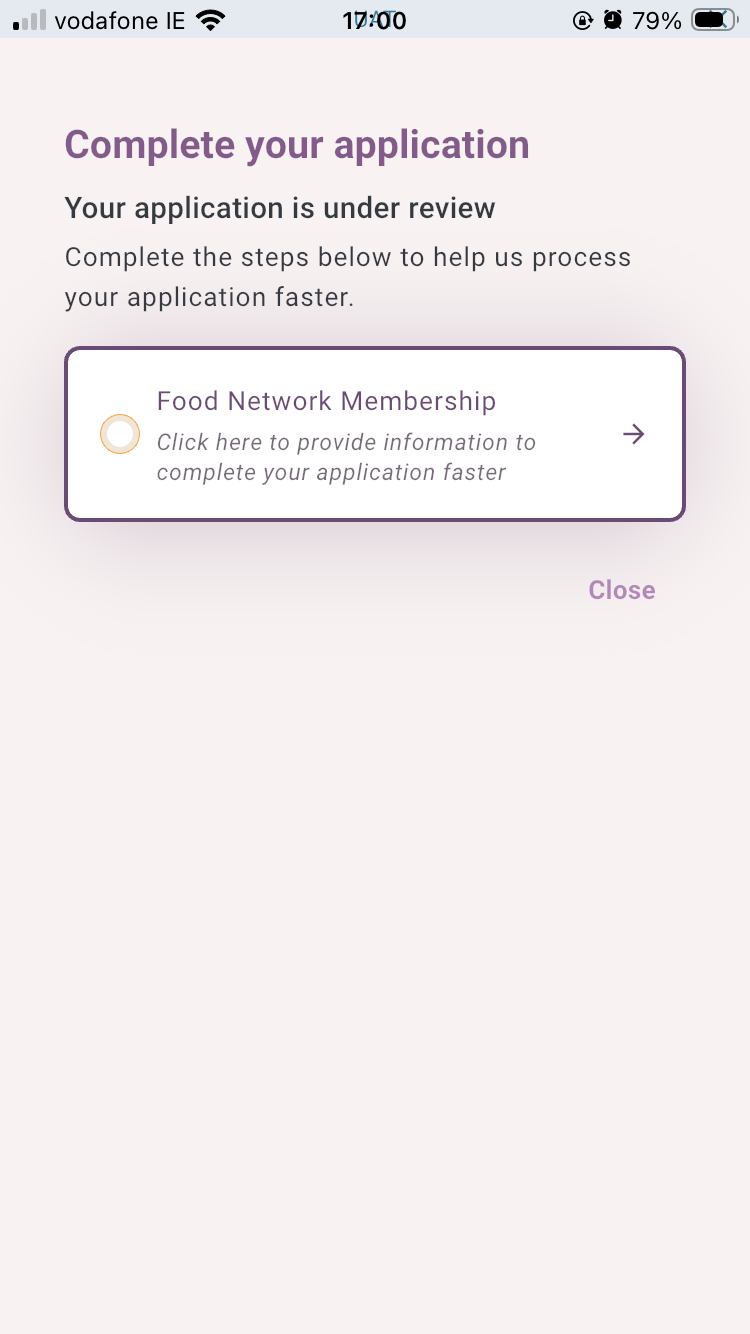
Look for the onboarding card for the Food Network you are applying to join.
-
Click the card to open the onboarding workflow.
If your setup shows a Complete Account Setup option, you may be able to open the workflow from there as well.
Example: opening the onboarding flow from the account setup area.
Tip: If you see multiple onboarding cards, open the one that matches the Food Network you want to work on. Each one is independent.

Review the onboarding screen
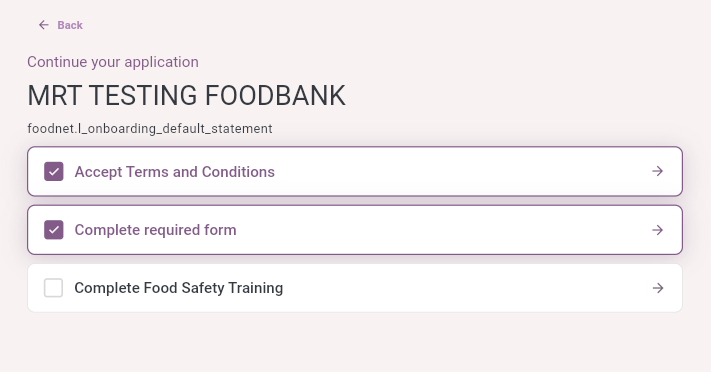
When the workflow opens, you will see the information set by the Food Network for your branch.
-
The page title
-
The Food Network name
-
An onboarding statement explaining what is needed
-
A list of tasks to complete
-
A progress indicator showing how much you have finished
Example: an onboarding workflow with task progress visible.
Some Food Networks may use simple tasks, while others may include links to forms, policies, or training resources.
Complete tasks
-
Read the task title and any supporting description.
-
If the task includes a link, click it to open the related page or document.
-
Use the available action button if one is shown.
-
Tick the checkbox or mark the task as complete when you have finished it.
-
Repeat this for each task in the list.
You can also untick a task if you marked it complete by mistake.
Example: task completion updates your onboarding progress.
Your progress is saved: if you leave the page and return later, completed tasks should still appear as completed.
Understand progress and what happens next
The progress bar updates as you complete tasks. This gives you a quick view of how much of the onboarding checklist you have finished.
-
If only some tasks are complete, the progress indicator will show partial completion.
-
When all tasks are complete, the workflow shows that you are now waiting for Food Network approval.
-
Your membership remains pending until the Food Network approves it.
Example: completed tasks contribute to the visible progress percentage.
Remember: finishing the checklist helps the Food Network review your application, but it does not grant access on its own.

Good practice when completing onboarding tasks
-
Complete tasks in a sensible order, especially when one task depends on another.
-
Open and review linked guidance before marking the task complete.
-
Only mark a task complete if the action has genuinely been finished.
-
If your branch belongs to more than one Food Network, complete each workflow separately.
-
If something is unclear, contact your Food Network administrator before submitting incorrect information.