
Useful information for Foodbank admins.
Who this is for: FoodNet administrators
What you can do: send General or Urgent communications to selected user cohorts in your FoodNet
Where to find it: FoodNet Settings → Send Outreach / Communications
Before you start
-
You must be logged in as a FoodNet Admin.
-
You must be in the correct FoodNet before sending a message.
-
Only send communications that are relevant to the users you select.
-
Check your wording carefully before confirming the send.
For critical food safety or product recall communications, continue to follow your established urgent communications process if your organisation requires it.
Open the communications tool
-
Log in to Foodiverse.
-
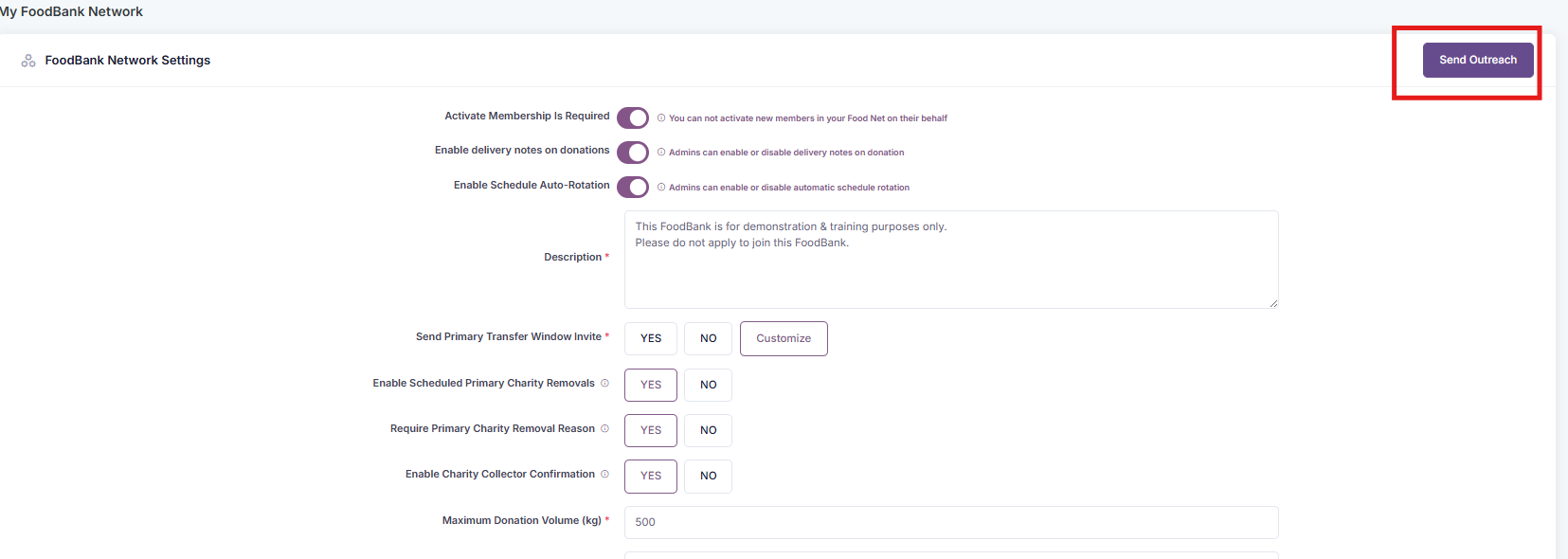
Go to FoodNet Settings.
-
Click the Send Outreach button to open the communications page.
If you manage more than one network or organisation, pause and confirm you are in the correct place before creating your message.
Create your message
-
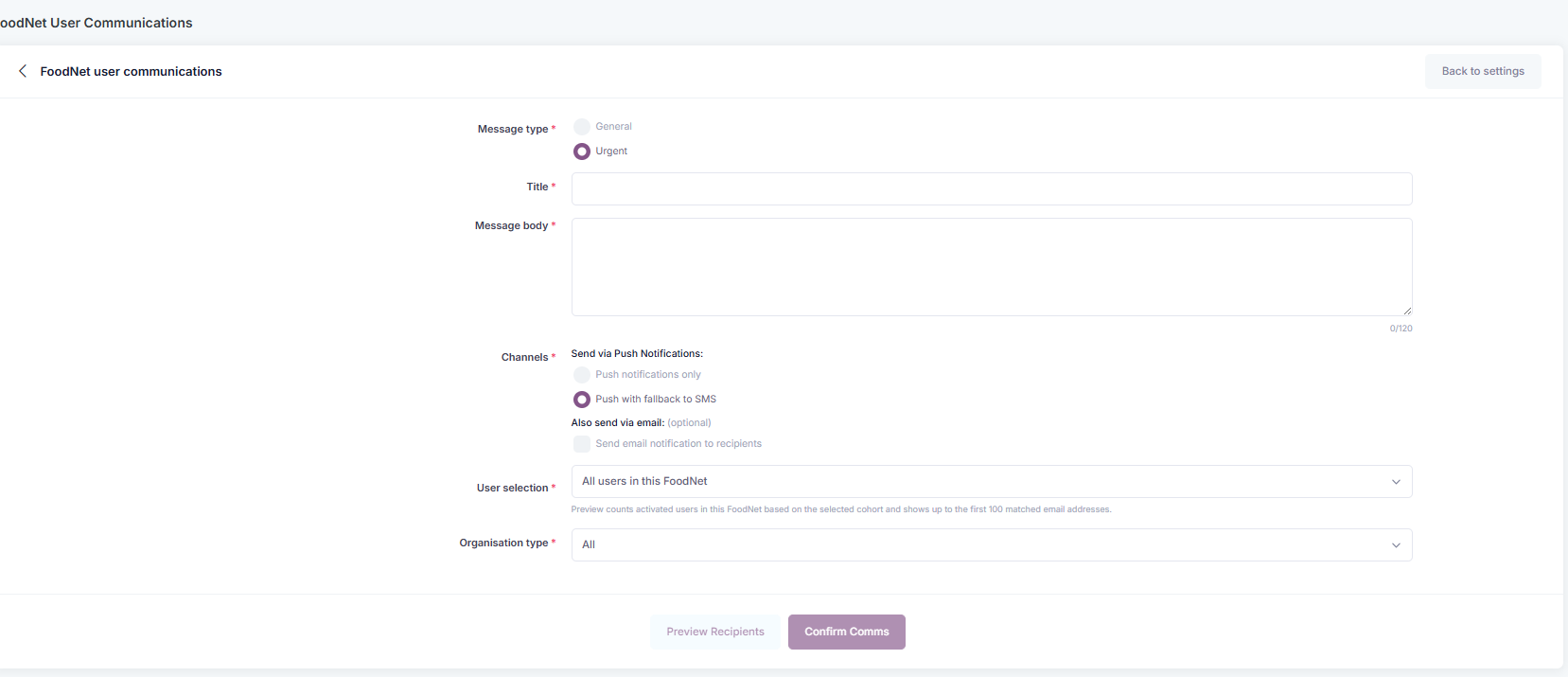
message type
-
General for standard updates or routine notices
-
Urgent for time-sensitive messages that users should see quickly
-
-
channel
-
Push only
-
Push with SMS fallback
-
Email
-
Push with SMS and Email where available
-
-
Enter the message content.
Choose Urgent only when the message is genuinely urgent. Overusing urgent communications can reduce trust and make important messages easier to ignore.
Select who should receive the message
The tool allows you to target different groups of users within your network.
-
All users in this FoodNet
-
Users within an organisation
-
Users from an email list
-
User type filters for relevant groups such as FoodBank, Donor, or Charity where available
-
Choose the audience option that best matches your intended recipients.
-
If needed, select a specific organisation.
-
If using an email list option, add the relevant user email addresses.
-
Review the audience carefully to make sure only the right users will receive the message.
A smaller, well-targeted audience is usually better than sending to everyone. Only include users who need the information.
Preview and send
-
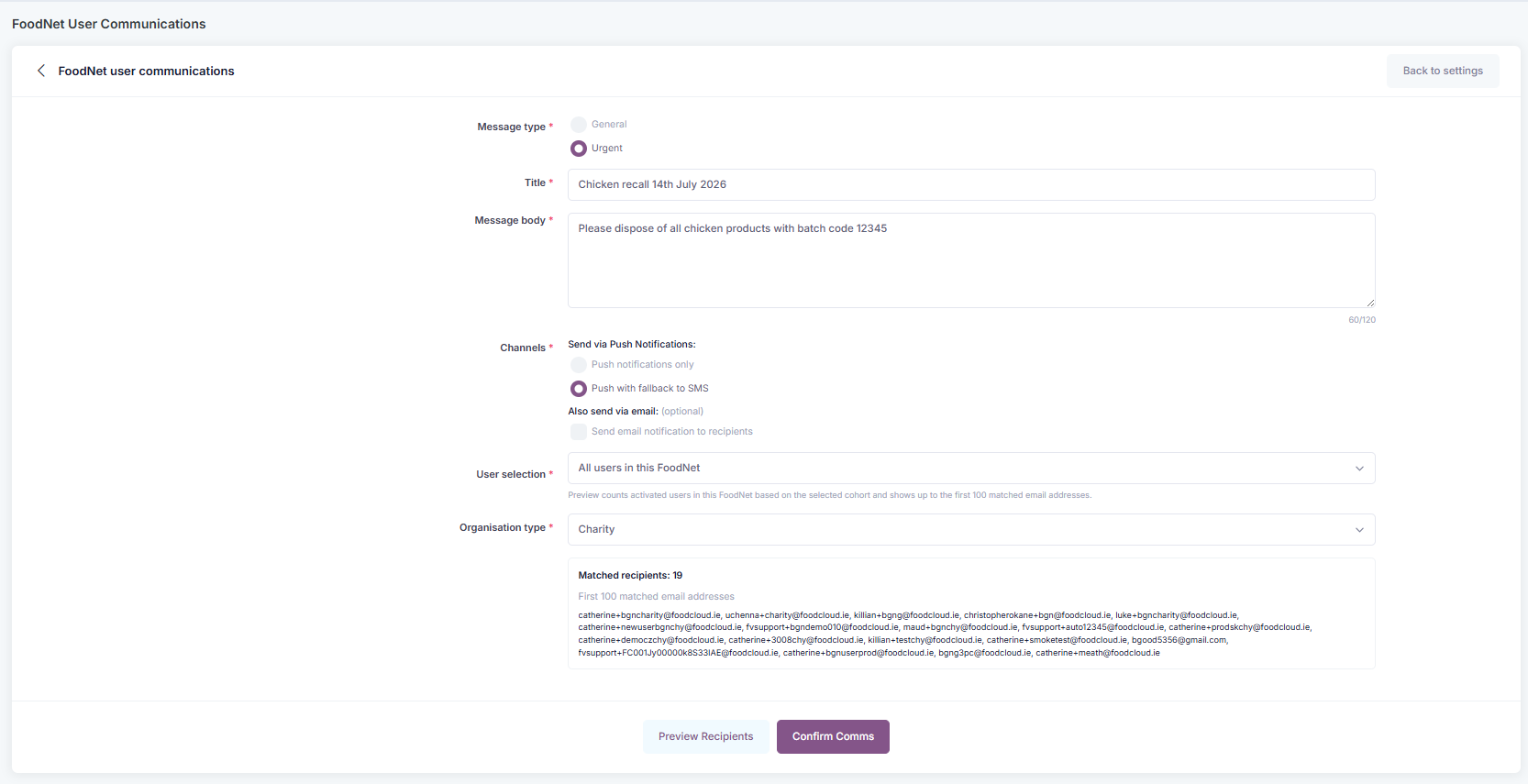
Click Preview to review the communication before sending.
-
-
message type
-
delivery channel
-
recipient group
-
message wording
-
-
If everything looks correct, click Confirm Comms.
-
Wait for the success confirmation before leaving the page.
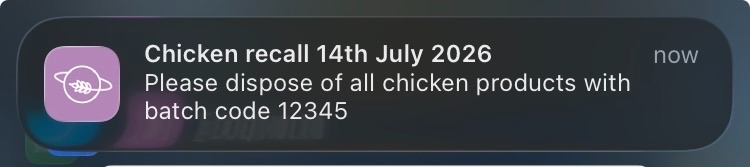
Once confirmed, the communication is sent directly from Foodiverse to the selected users using the chosen channel.
Good practice for writing messages
-
Keep the message short and clear.
-
Start with the key action or update.
-
Include dates, times, or next steps where relevant.
-
Avoid jargon or internal shorthand.
-
If the message is urgent, explain why.
Example general message:
Our FoodNet holiday support hours will change next week. Please review the updated collection schedule and temporary closure guidance before Friday.
Example urgent message:
Urgent: Please do not collect from the affected location until further notice. A follow-up update will be shared as soon as possible.