Push Notifications
-
Push notifications are clickable pop-up notifications that appear on your phone’s screen (configure on your own device if needed).
-
They serve as a means of conveying information promptly to the user.
Donor Push Notifications
Post donation reminder
-
This push notification informs you that your donation window has begun. The notification tells you what time your donation window starts and ends. The notification is sent when the donation window starts. If you click the push notification it will take you to the Dashboard page, Your Active Donations panel.
Donation accepted
-
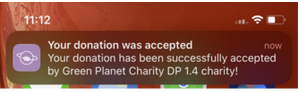
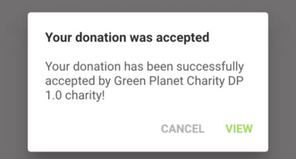
This notification informs you that your donation has been accepted. The notification gives you the name of the charity that accepted your donation. If you click the push notification it will bring you to the donation summary page. Here you can select if the donation was transferred or not transferred.
Charity Push Notifications
Donation available
-
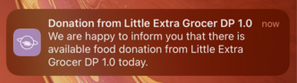
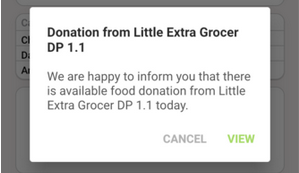
This notification informs the primary or waitlist charity that a donation has been posted. If you click this notification it will take you to the live donation, giving you the option to ‘accept’ or ‘reject’ the donation. The donor branch name will be displayed.
No availability
-
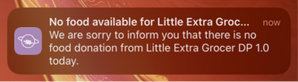
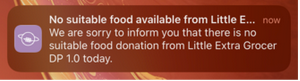
This notification informs the primary charity that there is no food donation today. If you click this notification it will bring you to the ‘Offers History’ page, showing the no availability donation at the top.
Unsuitable donation
-
This notification informs the primary charity that the donation offered was unsuitable. If you click this notification it will bring you to the ‘Offers History’ page, showing the unsuitable donation at the top.
-
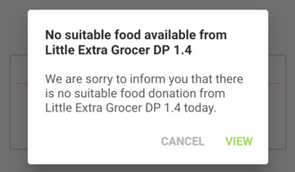
A donation is considered Unsuitable if it contains a food classification that your charity is not approved for. e.g. The donation contains Frozen food and your charity is only approved for Ambient food donations.
-
In-app Notifications
-
In-app notifications display inside the application when the app is already opened. These messages are meant to draw the user’s attention to a certain area of the application.
-
Donor In-app Notifications
Post donation reminder
-
This notification informs you that your donation window has begun. Click view to start creating a donation. Click cancel to close the notification.
Donation accepted
-
This notification informs you that your donation has been accepted. Click view to go to the live donation to mark as transferred or not transferred. Click cancel to close the notification.
Charity In-app Notifications
Donation available
-
This notification informs the primary or waitlist charity that a donation has been posted. Click view to go to the live donation to accept or reject the donation. Click cancel to close the window
No availability
-
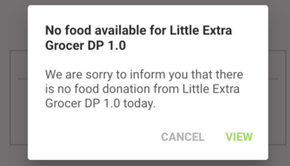
This notification informs the primary charity that there is no donation today. Click view to go to your offers history. Click cancel to close the window.
Unsuitable donation
-
This notification informs the primary charity that the donation made was unsuitable. Click view to go to the offers history page. Click cancel to close the window