
This report can be viewed by foodbank & donor admin/users.
About the Schedule report
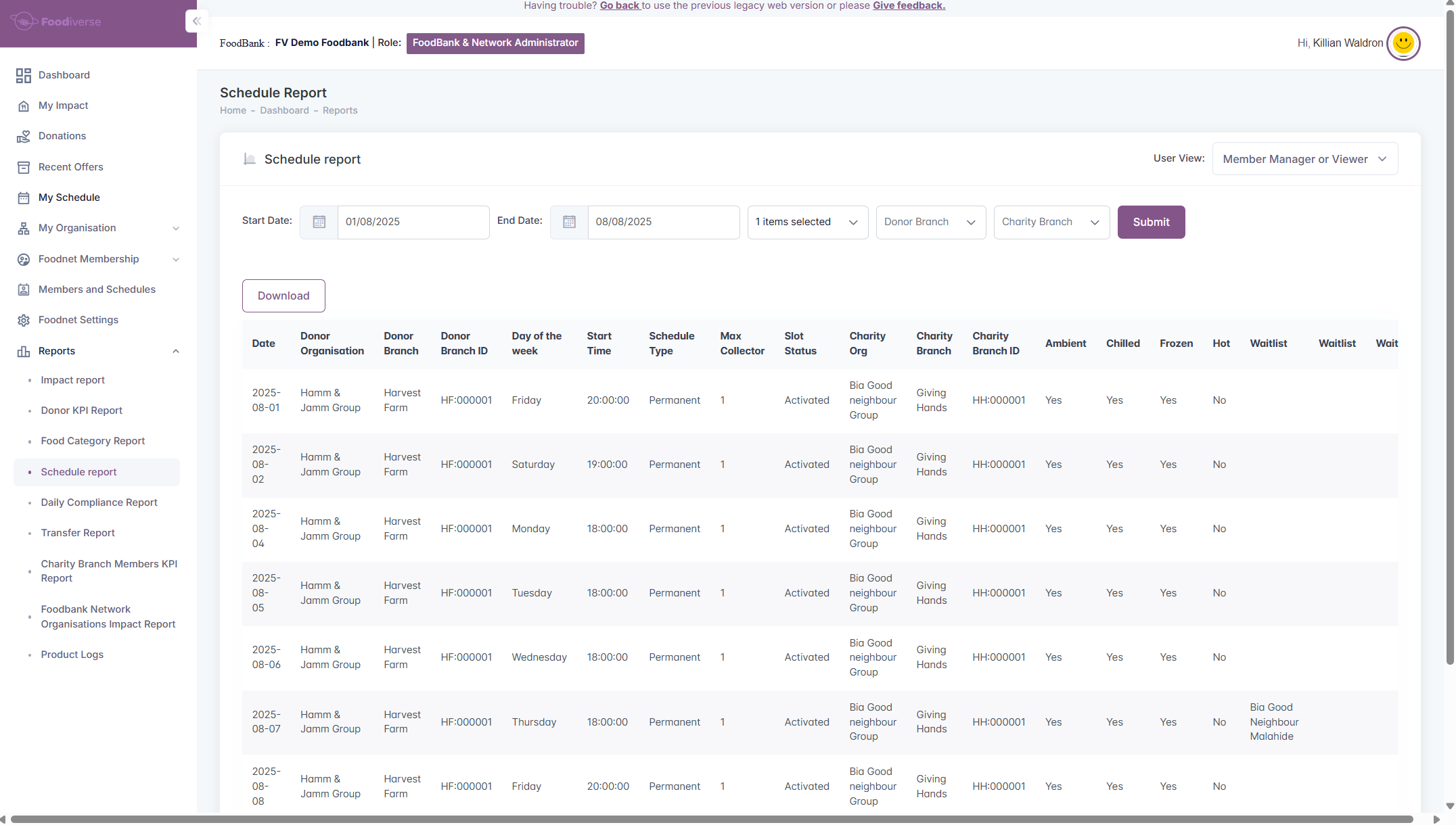
The schedule report gives the report viewer a breakdown of donor schedule windows, using a given date/date range and donor organisation. This can be further broken down by specifying a donor/charity branch.
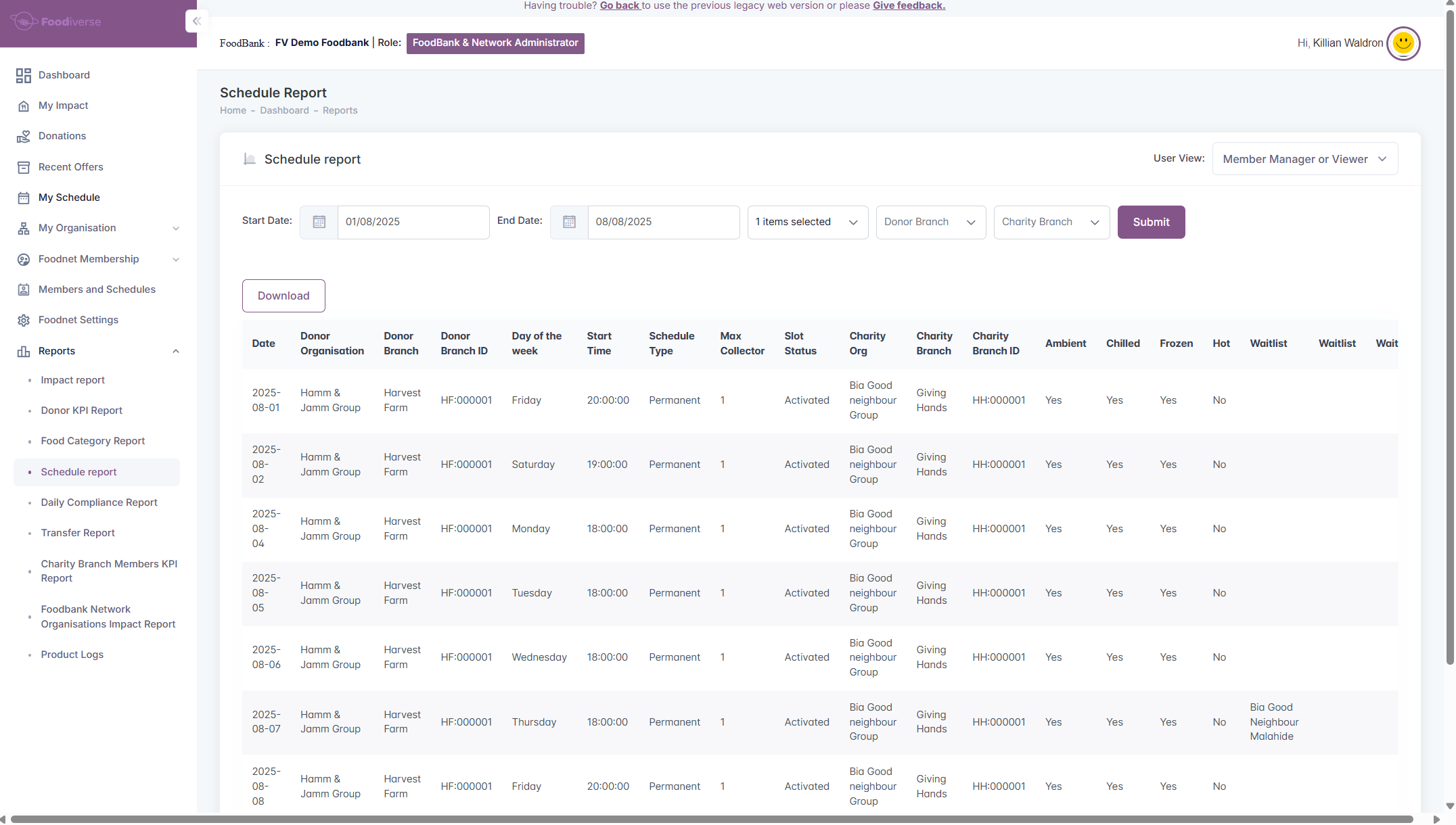
The report allows users to see all donation schedule windows and their details in a table view, including any charities on the scheduled window.
Understanding the Schedule report
-
The first 2 filters you see are;
-
Start Date
-
End Date
-
These filters allow you to specify the date range you want to view.
The report can view;
-
12 months in the past
-
4 months in the future
The maximum date range is 60 days.
-
The next 2 filters are;
-
Donor Organisation
-
Donor Branch
-
These filters allow you to specify the branch/branches you want to view.
-
The last filter option is;
-
Charity Branch
-
This filter allows you to specify the scheduled donation window which a charity branch is a part of.
Entering data into this field will not reset the other fields.
-
The user view can be changed using the drop-down menu. For a better understanding of user views, click this link.
Viewing the Schedule report
-
Login to your Food net admin account on the Foodiverse web application.
-
Navigate to Reports -> Schedule Report -> View
-
In the above example we can see the breakdown of 4 scheduled donation windows.
-
Each window has;
-
The date that the day of the week was on. E.g in this example, a Monday
-
The Donor Organisation name
-
The Donor Branch name
-
The ID given to that donor branch by the Foodnet admin
-
The day of the week for the scheduled donation window
-
The Start Time is when the donation window begins
-
The Schedule type is wether the Schedule is Permanent/Temporary/Closed
-
The maximum number of collectors for the donation
-
The Slot Status is whether the scheduled donation window is Activated, Activation Pending & Available.
-
The primary Charity Organisation name
-
The primary Charity Branch name
-
The ID given to that charity branch by the Foodnet admin
-
The toggled option allowed for the 4 food category types
-
This is for the primary charity only
-
This is the food classifications as set by the Foodbank admin
-
-
The name of any waitlist charities on the schedule
-
-
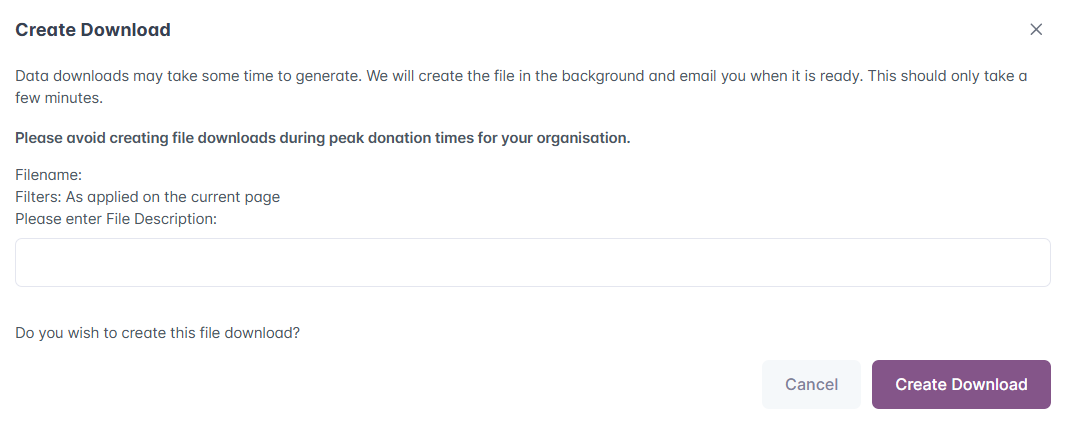
The report can be downloaded by pressing the DOWNLOAD button.
-
A pop-up will appear, allowing you to provide a description to the file.
The maximum download limit is 7 days.
-
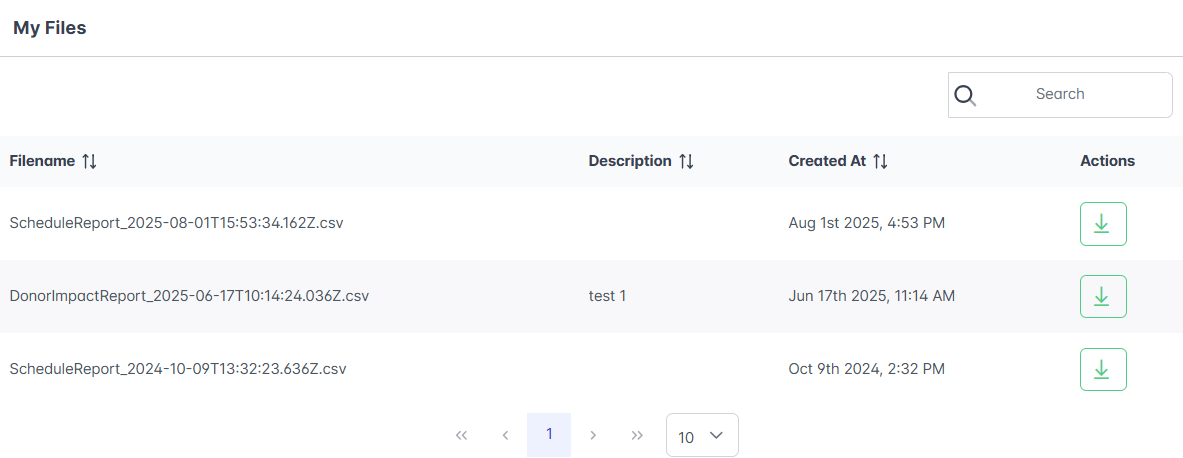
To view this file, in the top right of the window navigate to My Profile -> My Files.
-
The newly downloaded file will be at the top of the list.
-
Clicking the green download icon will download the file to your computer.
-
This downloaded file can now be viewed on a spreadsheet.